Installation and Updates#
This section describes how to install GTlab and its components, including the optional Python module. The installation process is supported on Windows and Linux systems.
System Requirements#
Before installing GTlab, ensure that your system meets the following minimum requirements:
Operating System: Windows 10 or newer, or a recent Debian-based Linux distribution (Ubuntu, Linux-Mint)
Processor: Multi-core CPU, 2 GHz or faster
Memory: At least 4 GB RAM (8 GB recommended for large projects)
Disk Space: 1 GB for the core installation, plus additional space for additional modules and project data
Python (optional): Python 3.9 (required if the Python module is used)
Obtaining GTlab#
The community version of GTlab can be downloaded from https://gtlab.de.
For the DLR internal version, which includes additional modules, or if you require licensed modules, please contact: gtlab-support@dlr.de.
Installation Steps#
1. Download the Installer for your system from https://gtlab.de/pages/download.html .
2. Run the Installer Launch the installation program and follow the on-screen instructions.
Select Components Choose the desired components during installation:
GTlab Core Framework (mandatory)
Optional Modules such as IntelliGraph, or the GTlab Python Module
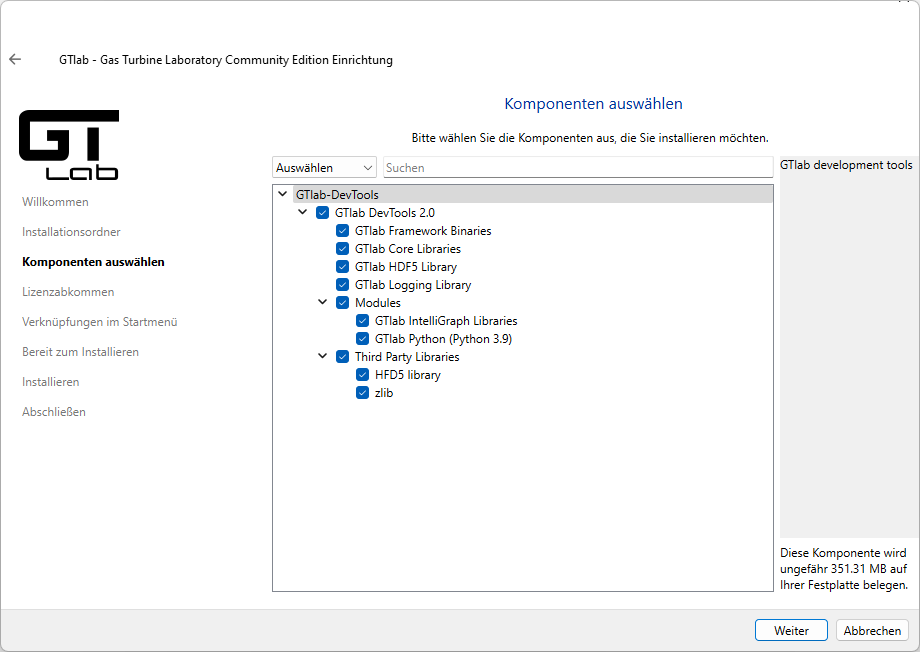
4. Complete Installation Confirm your selections and finish the installation process.
Python Module (Optional)#
To enable Python scripting in GTlab, install the GTlab Python Module. For more details, see Scripting → Initial Setup.
Maintenance Tool#
The GTlab Maintenance Tool allows you to:
Add or remove modules after installation
Update GTlab to the latest version
Repair or modify existing installations
Silent Installation#
For automated deployments, GTlab supports silent installation using command-line parameters.
To e.g. install on windows to c:\tools\gtlab, type
gtlab-ce-installer-windows-x64.exe install de.dlr.gtlab.dev.stable.2.0 -t c:\tools\gtlab -c --al